
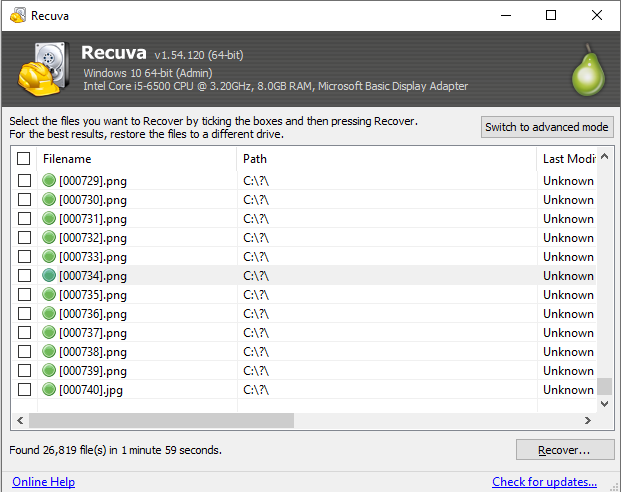
On many SSDs, deleted blocks can be cleared quickly by TRIM and background maintenance. That does not make Recuva useless—it means time and write activity are your main enemies. Start recovery as soon as possible and stop using the volume for anything non-essential.
TRIM tells the SSD which logical blocks are free after a delete. The controller may erase those flash pages in the background. Once erased, there is nothing for a signature scan to find. How fast that happens depends on firmware, idle time, temperature, and how full the drive is—not a single universal timer.
What still works on SSDs
Recently deleted files on a lightly used system sometimes survive long enough for a normal scan. External SSDs connected over USB may see TRIM delayed or behave differently than an internal NVMe boot drive. Corporate images with aggressive disk encryption add another layer: recovered clusters may still be ciphertext.
- Prefer reading the affected volume from another OS instance or live environment only if you know it will not mount the volume read-write.
- Disable hibernation and sleep only in consultation with policy—do not trade one risk for another on a managed laptop.
- Capture notes: time of delete, approximate free space, and whether BitLocker was on. That context matters if you escalate.
Compare outcomes to HDDs only when it helps you plan: spinning disks often keep deleted data longer under typical desktop use. Document what you tried and where you saved files; if data is critical and the drive is healthy, consider imaging before deeper experimentation.
BitLocker and portable drives
If the volume was encrypted with BitLocker and you lack the recovery key, undelete tools cannot magically decrypt content. Recovery may still find pre-encryption backups or unencrypted copies elsewhere on disk—pair Recuva with a sober inventory of where projects were duplicated.
For a full first-hour playbook, see Workflow. When the UI labels many items “unrecoverable,” the support page groups common false alarms versus real TRIM exhaustion.
Internal NVMe vs external enclosures
NVMe drives inside a laptop often see the most aggressive background housekeeping. A SATA SSD in a USB enclosure may present different queuing and error-recovery behavior—USB bridges can also hide SMART details you would use to justify cloning first.
Enterprise SSDs with higher over-provisioning and sustained write workloads can erase free blocks faster than consumer models, but the rule remains: fewer minutes and fewer writes beat guessing firmware quirks.
Imaging before you experiment
If the data is worth more than the drive, consider a sector copy to a known-good target before repeated scans. Imaging is slower up front but gives you rewind points when a second tool—or a second pass with different filters—becomes necessary.
Hybrid drives and host-managed SMR
Some spinning disks cache hot data on flash. Behavior blends HDD and SSD expectations: TRIM-like concepts may appear in firmware logs you never see from Windows. Treat unknown hardware conservatively: one calm pass with logging beats five frantic rescans.
Questions teams actually ask
“Does freezing the SSD help?” Consumer advice around temperature is not a substitute for stopping writes and cloning. “Will a defrag help?” Defragmenting a damaged or nearly full SSD is usually the wrong move during recovery—ask IT before running optimizers. “Can we scan from Linux?” Different OS, same physical risk if mounted read-write; verify mount options and policies first.
Document baseline SMART, hours powered, and whether the disk was encrypted. That single note card saves enormous email threads when you hand off to a lab.